
MORSE CODE MEDIA NETWORKS

WELCOME!
Hi! Welcome to my website! I'm an online video host and producer who focuses on consumer technology and security / privacy. Check out the links above for more info about my media company, Morse Code Media Networks, and what I can offer you.
Thanks for dropping by!

Featured Videos


HOSTING
Current Projects
The following shows are independently owned and operated by Shannon Morse with the exception of ThreatWire which is owned by Hak5. All of the below channels are currently producing quality content for a diverse audience. For statistical information, please download the media kit.
SHANNON MORSE

SAILOR SNUBS

THREATWIRE

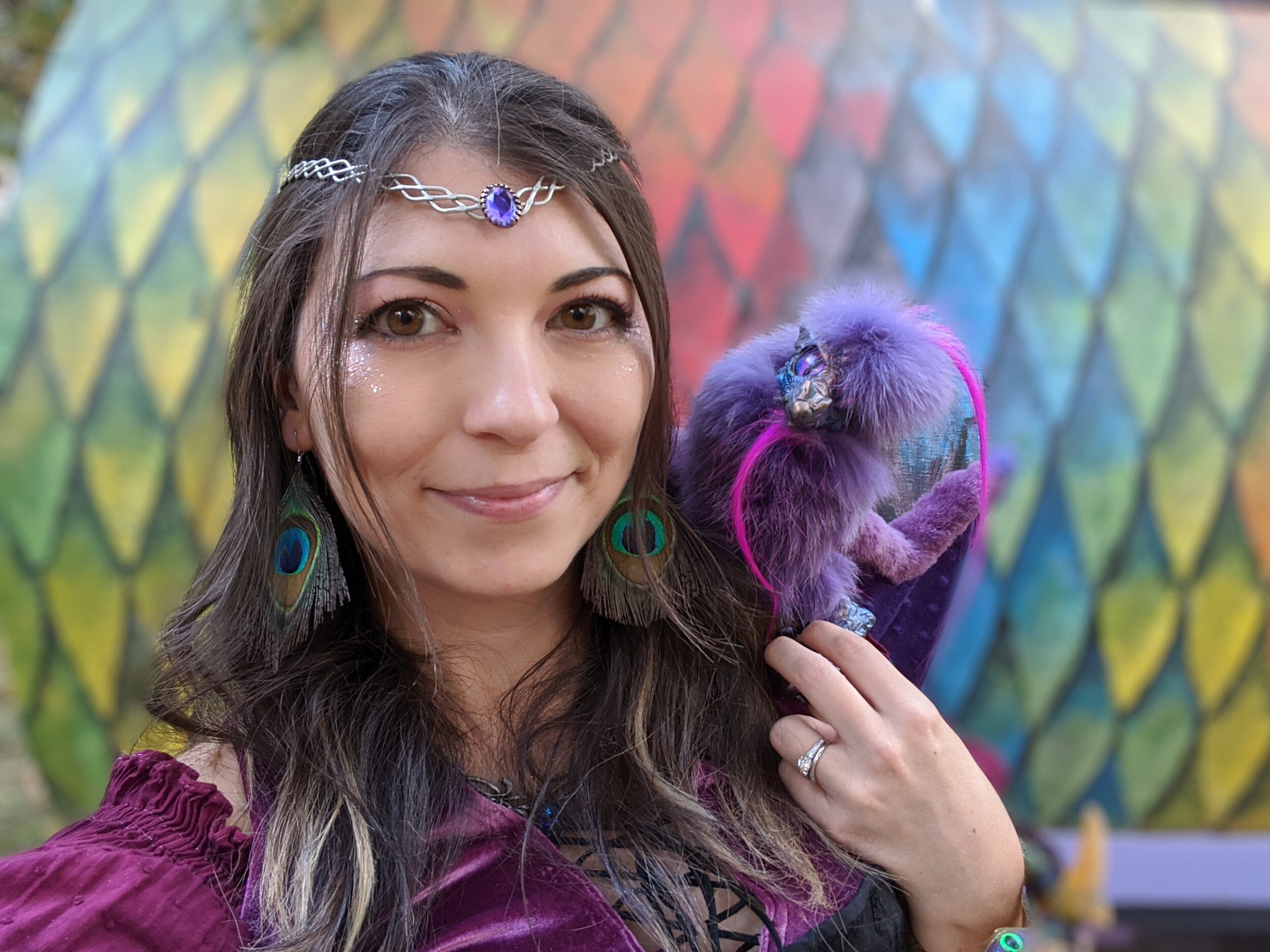
By downloading and purchasing my digital photography, you have the freedom to get these photos printed wherever you want on whatever you want. This allows me to keep the costs down, and you receive immediate access to your purchase - no shipping of a physical item required!
Each purchase funds the creation of future creative content via my platforms. Thank you for supporting my content and for being a part of this awesome community!

AVAILABLE FOR HIRE
Work With Me!
I am currently available as an online media host and influencer to work with your brand. I have over a decade of experience working as a full time Youtube content creator independently and for a variety of networks.

Video Host

Keynote Speaker

Brand Ambassador / Influencer

Sponsorships & Ad Placements

Tourism & Travel Industry
Consulting
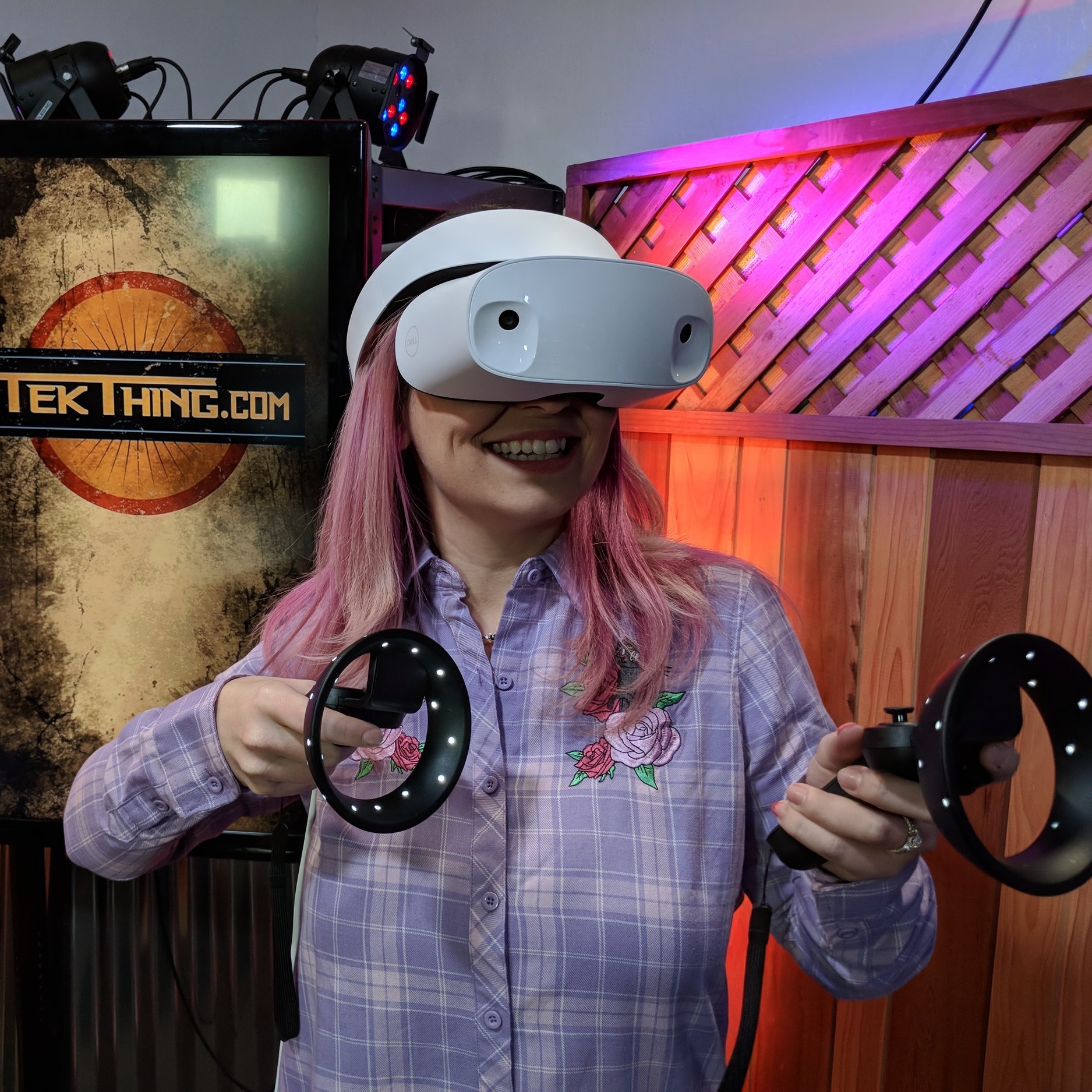
Product Reviews or Features








-
 I read this and immediately thought of three different times I've experienced this while at conferences where I'm w… https://t.co/TPoRWdoSUE
 -
Beach day 🏖️ 📸: @b___morse @ Topsail Beach, North Carolina https://t.co/xYKUsSnXHT
-
A conversation 👇 Grandma: "you and the husband better start having babies." Me: "I'll have a baby when the supreme… https://t.co/vcYQPw55qi
-
RT @SailorSnubs: This was available several months ago and is now back in stock at @hottopic The figure is removable! 20 oz. BPA-… https://t.co/odFQjvD0vi
“Such a simple concept, yet so true: that which we manifest is before us; we are the creators of our own destiny. Be it through intention or ignorance, our successes and our failures have been brought on by none other than ourselves.”

Samsung serves up ads on their phones, but I've never seen one on my Galaxy devices. This is how you can save yourself from the annoyance.